MB Relationships
MB Relationships creates relationships between posts, terms, users, and custom models. When you edit an item, you can select other items to connect to. It works with all post types, custom taxonomies, users, and custom models. It supports many-to-many, one-to-many, many-to-one, and one-to-one relationships.
This is an example of a many-to-many relationship between events (a custom post type) and speakers (users).

The plugin uses a custom table for storing relationships and integrates with default WordPress queries to retrieve the connected items easily. Using a custom table has several benefits:
- Bidirectional by nature
- Easier querying items in both directions (
fromandto) or querying sibling items - Not polluting the post/term/user meta tables
- Better performance
The custom table is automatically created when the plugin is activated.
Creating relationships
You can create a relationship in either of the following ways:
- Using MB Builder, which provides a UI for creating relationships. This is a premium extension already bundled in Meta Box Lite or Meta Box AIO.
- Using code.
Before going into the detailed settings of a relationship, note that when a relationship is created, you'll see a meta box (usually on the right side - this position can be changed). Inside that meta box, there is a field (post, taxonomy_advanced, user, or model depending on the object type) for selecting connected items. The field is cloneable by default, or a single-select dropdown when Has one relationship is enabled. The settings are divided into 3 parts: settings for the relationship, the meta box, and the field.
Now let's see how to create a relationship with MB Builder.
Using MB Builder
To create a relationship, go to Meta Box > Relationships and click Add New.
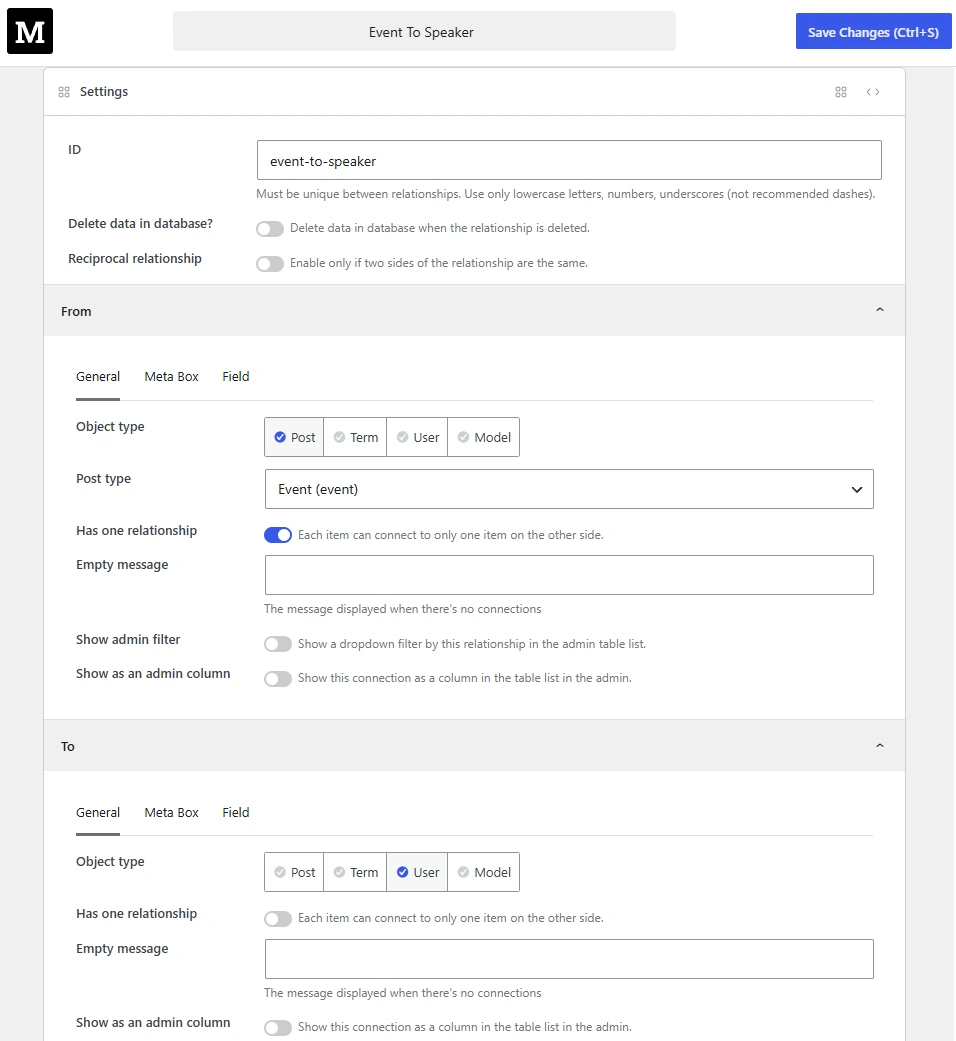
Here you can enter all the settings for the relationship and each side of the relationship (From and To).
Relationship settings
| Name | Description |
|---|---|
| Delete data in database? | Whether to delete relationship data from the database when the relationship is deleted. |
| Reciprocal relationship | Whether the relationship is reciprocal, e.g. a relationship between items of the same type. If you enable this, make sure the settings for the "From" and "To" sides are the same. |
When editing an item, the plugin shows a meta box for selecting connected items. For reciprocal relationships between items of the same type, the plugin shows 2 meta boxes (one for each "from" and "to" side) unless you enable this setting, which limits the UI to a single meta box.
Side settings
For each side, there are 3 tabs of settings:
- General: for general settings such as object type and post type.
- Meta Box: for extra meta box settings. These settings are the same as the field group settings when creating custom fields.
- Field: for extra field settings. These settings are the same as the field settings (post, taxonomy_advanced, user, or model depending on the object type).
- General
- Meta Box
- Field
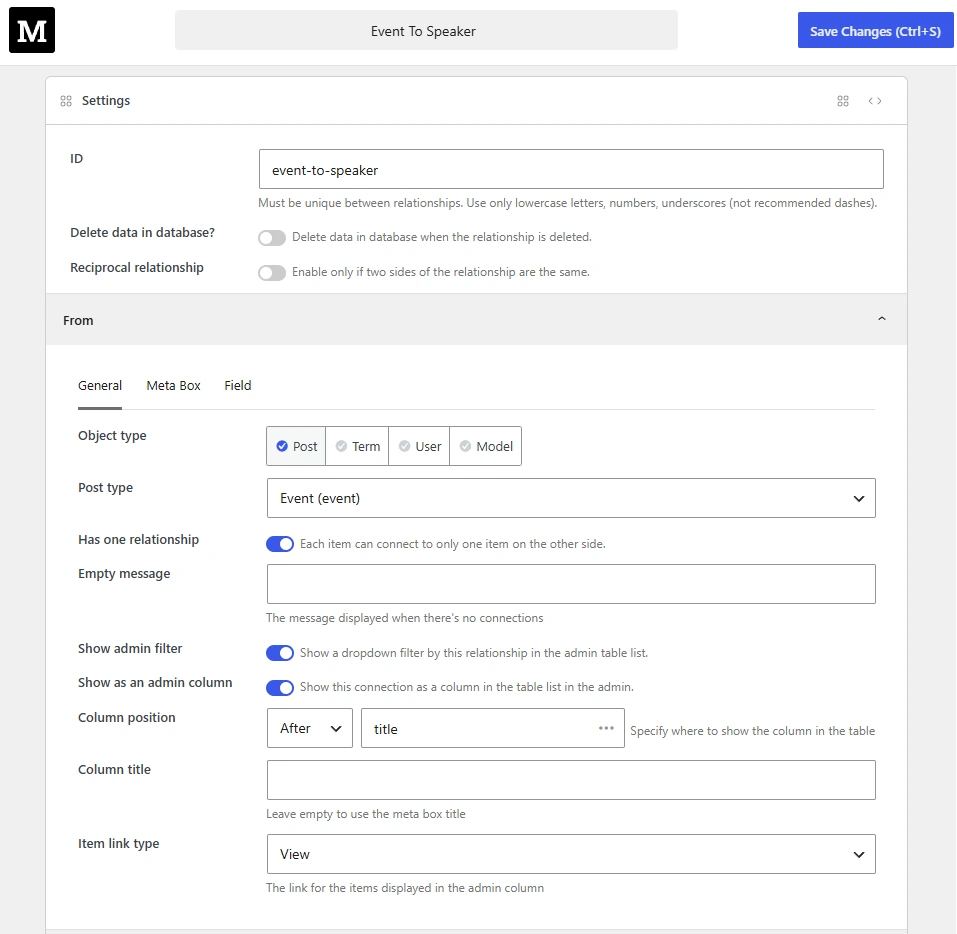
| Name | Description |
|---|---|
| Object type | Object type for this side: Post, Term, User, or Model. For Term, activate MB Term Meta. For User, activate MB User Meta. For Model, activate MB Custom Table and create at least one custom model. |
| Post type | Appears when object type is Post. Select the post type. |
| Taxonomy | Appears when object type is Term. Select the taxonomy. |
| Model | Appears when object type is Model. Select the custom model. |
| Has one relationship | When enabled, each item on this side can connect to only one item on the other side. The field becomes a single-select dropdown, and the plugin enforces the limit when saving data. When enabled on the other side, items that are already connected elsewhere are hidden from the dropdown. |
| Empty message | The custom message displayed when there are no connections. Leave blank to use the default message "No connections". |
| Show admin filter | Add a select dropdown to filter posts by this relationship. Works only for posts. |
| Show as admin column | Show the connections in the admin list table for posts, terms, users, or models. When enabled, additional settings appear below. |
| Column position | The position of the admin column. Set it before, after, or in place of an existing column by choosing an option from the dropdown and selecting or entering the target column ID. The plugin provides a list of common WordPress columns - press the down arrow key to browse them. If you use a custom admin column, enter its column ID here. |
| Column title | Custom admin column title. Leave blank to use the default title from the relationship meta box. |
| Item link type | How each connected item appears in the admin column: linked to the edit screen, linked to view it on the frontend, or without links. |
The plugin automatically creates meta boxes to let you select connected items. The meta box settings are very much like a normal meta box when you create custom fields, but simpler.
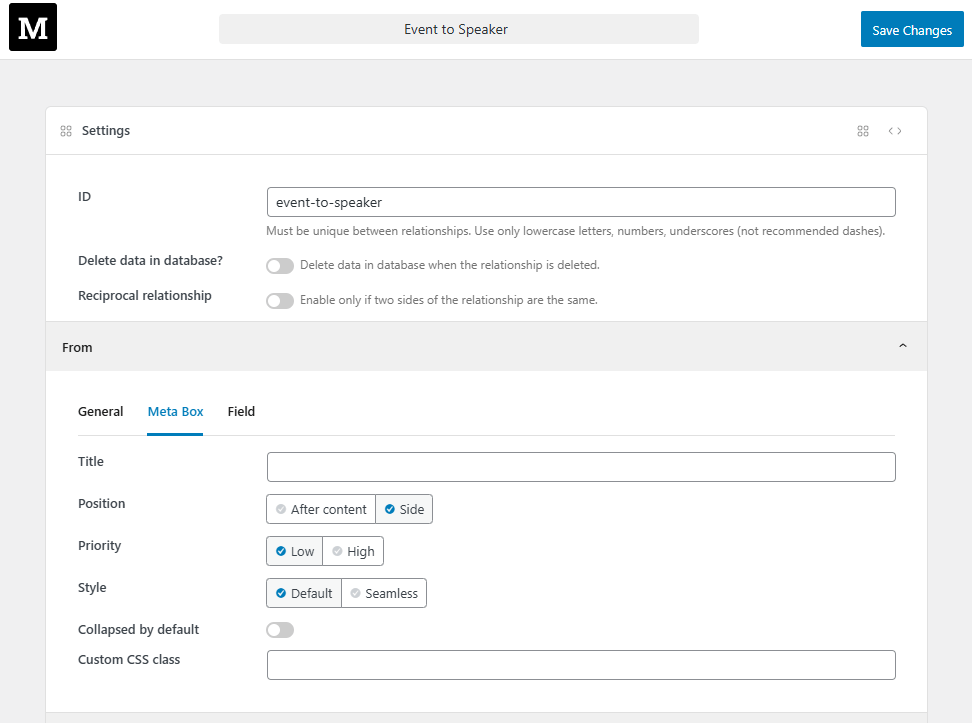
| Name | Description |
|---|---|
| Title | The custom meta box title. Leave blank to default to "Connected To" or "Connected From". |
| Context | Where to show the meta box. |
| Priority | The priority of the meta box. Meta boxes with higher priority appear first. |
| Style | The meta box style: default (with wrapper) and seamless (no wrapper). |
| Collapse by default | Whether to collapse the meta box when the edit page loads. |
| Custom CSS class | If you want to style your meta box, then enter a custom CSS class here. |
To select connected items, the plugin uses Meta Box's post, taxonomy advanced, user, or model field according to the object type of the relationship. This tab shows the settings for the field.
These settings apply to the field displayed on the other side of the relationship - where you select items for this side.
So, if you have a relationship from post to user and you are configuring the "From" side (for post), the post field appears only when you are editing a user (the "To" side).
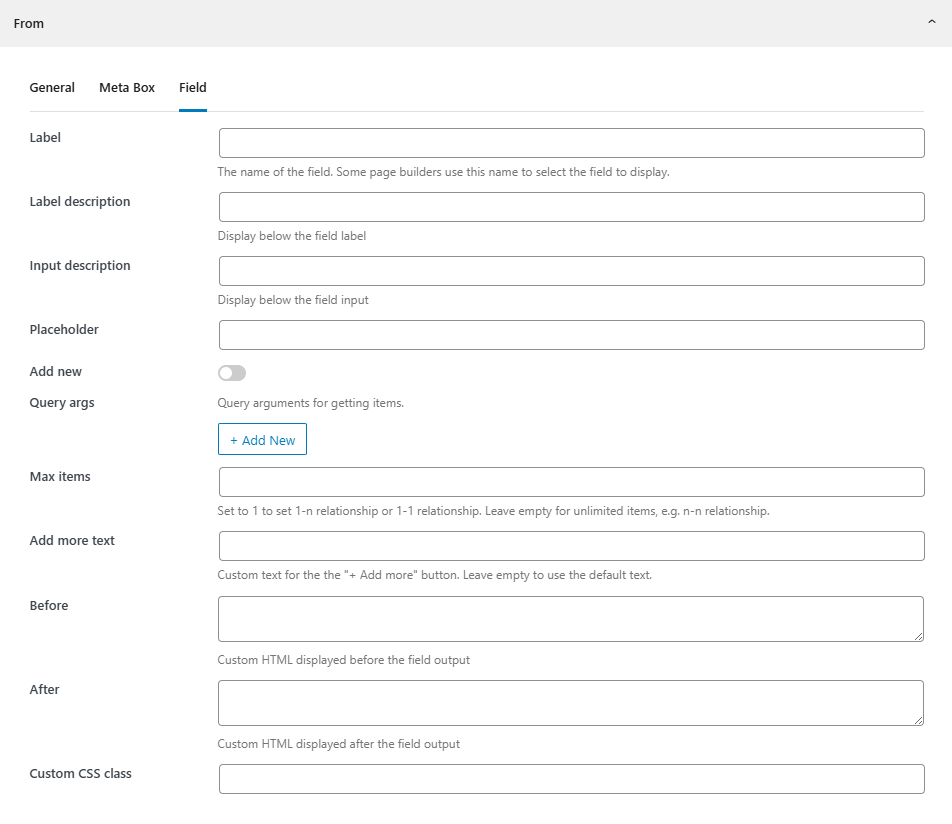
| Name | Description |
|---|---|
| Label | The field label. Leave empty to hide the label. |
| Label description | A description displayed below the field label. |
| Input description | A description displayed below the field input. |
| Placeholder | The placeholder text for the select dropdown. |
| Query args | Query arguments for the items to select. For posts, use WP_Query args. For terms, use get_terms args. For users, use get_users args. For models, use limit, page, orderby, order, exclude, and s. See the model field. |
| Max items | The maximum number of selected items. For one-to-one or one-to-many relationships, use Has one relationship in the General tab instead. Max items only limits how many rows appear in the field UI and does not enforce uniqueness on the other side. |
| Add more text | The custom text for the "Add more" button. |
| Before | Custom HTML to output before the field. |
| After | Custom HTML to output after the field. |
| Custom CSS class | If you want to style the field, then enter a custom CSS class here. |
Using code
The code below registers a relationship from posts to pages:
add_action( 'mb_relationships_init', function() {
    MB_Relationships_API::register( [
        'id'   => 'posts_to_pages',
        'from' => 'post',
        'to'   => 'page',
    ] );
} );
This code shows 2 meta boxes on the post and page edit screens:
- For posts: a meta box to select connected pages.
- For pages: a meta box showing posts connected to that page.
If you want to register a relationship from categories to posts, use the following code:
add_action( 'mb_relationships_init', function () {
    MB_Relationships_API::register( [
        'id'   => 'categories_to_posts',
        'from' => [
            'object_type' => 'term',
            'taxonomy'    => 'category',
        ],
        'to'   => 'post',
    ] );
} );
Or register a relationship from users to posts:
add_action( 'mb_relationships_init', function () {
    MB_Relationships_API::register( [
        'id'   => 'users_to_posts',
        'from' => [
            'object_type' => 'user',
        ],
        'to'   => 'post',
    ] );
} );
Or register a relationship from posts to a custom model (for example, bookings):
add_action( 'mb_relationships_init', function () {
    MB_Relationships_API::register( [
        'id'   => 'posts_to_bookings',
        'from' => 'post',
        'to'   => [
            'object_type' => 'model',
            'model'       => 'booking',
            'field'       => [
                'item_title' => '{title} - {amount}',
            ],
        ],
    ] );
} );
To register a one-to-many relationship (each product has one brand, each brand has many products), enable has_one_relationship on the side where each item has only one partner (the product/From side in this example):
add_action( 'mb_relationships_init', function () {
    MB_Relationships_API::register( [
        'id'   => 'products_to_brands',
        'from' => [
            'object_type'          => 'post',
            'post_type'            => 'product',
            'has_one_relationship' => true,
        ],
        'to'   => [
            'object_type' => 'post',
            'post_type'   => 'brand',
        ],
    ] );
} );
For a one-to-one relationship, set has_one_relationship to true on both from and to.
Syntax
The main API function MB_Relationships_API::register has the following parameters:
| Name | Description |
|---|---|
id | The relationship ID (or type). Used to distinguish this relationship from others. Required. |
from | The "from" side of the relationship. Required. See below for details. |
to | The "to" side of the relationship. Required. See below for details. |
reciprocal | Whether the relationship is reciprocal (true or false). Optional. |
Both sides from or to accept various parameters for the connection and meta box:
- If you pass a string to
fromorto, the plugin treats it as the post type. The relationship is created between posts of the specified post types. - If you pass an array to
fromorto, the array accepts the following parameters:
| Name | Description |
|---|---|
object_type | The object type the relationship is created from/to: post (default), term, user, or model. Optional. |
post_type | The post type if the object_type is set to post. Default post. Optional. |
taxonomy | The taxonomy if the object_type is set to term. |
model | The model slug if the object_type is set to model. |
has_one_relationship | Whether each item on this side can connect to only one item on the other side (true or false). Default false. For one-to-one, set true on both from and to. |
empty_message | The message displayed when there are no connections. |
meta_box | Meta box settings, has the same settings as a normal meta box. Below are common settings you might want to change: |
-- title | The meta box title. Default is "Connect To" for "from" side and "Connected From" for "to" side. |
field | Field settings, has the same settings as a post, user, taxonomy, or model field according to the object type. Below are common settings you might want to change: |
-- name | Field title. |
-- placeholder | Placeholder text. |
-- query_args | Custom query arguments to get objects of object_type. Passed to WP_Query(), get_terms(), or get_users() depending on object_type. For model, accepts limit, page, orderby, order, exclude, and s. See the model field. |
-- max_clone | Maximum number of connections. Does not enforce uniqueness on the other side. Use has_one_relationship for one-to-one or one-to-many relationships. |
The field settings apply to the field displayed on the other side of the relationship - where you select items for this side.
So, if you have a relationship from post to user and you are configuring the "From" side (for post), the post field appears only when you are editing a user (the "To" side).
Admin column
The plugin supports showing connected items in the admin list table of posts, terms, users, or models. To enable this feature, add the admin_column parameter to the from or to relationship configuration:
MB_Relationships_API::register( [
    'id'   => 'posts_to_pages',
    'from' => [
        'object_type'  => 'post',
        'admin_column' => true,
    ],
    'to'   => [
        'object_type'  => 'post',
        'post_type'    => 'page',
        'admin_column' => 'after title',
    ],
] );
Similar to MB Admin Columns, the plugin supports 3 formats of the parameter:
- A boolean
true: display the admin column at the end of the list table. The column title matches the connection meta box title. - A string such as
"before title": specify the column position. The first word is the placement ("before","after", or"replace") and the second is the target column ID. - An array of advanced settings, as below:
'admin_column' => [
    'position' => 'after title',
    'title'    => 'Price',
    'link'     => 'edit',
],
| Key | Description |
|---|---|
position | Specify where to insert the new column. It's the same as described in the #2 method above. |
title | Column title. Optional. Default is the meta box title. |
link | Configure the link for items in the admin column. Can be view (link to the frontend - default), edit (link to the edit screen), or false (no link). |
Bi-directional relationships
While relationships are registered with distinct "from" and "to" sides, the connections themselves are bi-directional. You can query in either direction without issue. The query API is explained in the next section.
The data is stored in the database as a pair of (from_id, to_id), making it independent of either side.
Getting connected items
API
Using the API is the fastest and simplest way to get connected items:
$pages = MB_Relationships_API::get_connected( [
    'id'   => 'posts_to_pages',
    'from' => get_the_ID(),
] );
foreach ( $pages as $p ) {
    echo $p->post_title;
}
If you need more control over connected items (like sorting or limiting the number of items), see the sections below for each type of content.
Posts
To get pages connected to a specific post, use the following code:
<?php
$connected = new WP_Query( [
    'relationship' => [
        'id'   => 'posts_to_pages',
        'from' => get_the_ID(), // You can pass object ID or full object
    ],
    'nopaging'     => true,
] );
while ( $connected->have_posts() ) : $connected->the_post();
    ?>
    <a href="<?php the_permalink(); ?>"><?php the_title(); ?></a>
    <?php
endwhile;
wp_reset_postdata();
To query connected posts, pass a relationship parameter to WP_Query().
To display posts connected to a specific page (a backward query), replace from with to in the code above:
$connected = new WP_Query( [
    'relationship' => [
        'id' => 'posts_to_pages',
        'to' => get_the_ID(), // You can pass object ID or full object
    ],
    'nopaging'     => true,
] );
That's all.
Why use WP_Query()?
There are 3 reasons to use WP_Query():
- Flexibility - You can combine relationship queries with other criteria. For example, get related posts and filter by category in a single query. Without
WP_Query(), you would need two separate queries. - Performance -
WP_Query()is optimized for posts and runs a single database query. It returns full post objects by default, or just IDs if you set'fields' => 'ids'. - Familiarity -
WP_Query()is standard in WordPress development. There is no need for a separate query API for the same purpose.
Also note that in the example above, nopaging is set to true, which disables pagination so the query returns all connected posts.
For the full list of supported parameters for WP_Query(), please see the documentation.
Terms
Similar to posts, getting connected terms is simple:
$terms  = get_terms( [
    'taxonomy'     => 'category',
    'hide_empty'   => false,
    'relationship' => [
        'id' => 'categories_to_posts',
        'to' => get_the_ID(), // You can pass object ID or full object
    ],
] );
foreach ( $terms as $term ) {
    echo $term->name;
}
We use the WordPress get_terms() function with an additional relationship parameter for the same reasons as posts.
For the full list of supported parameters for get_terms(), please see the documentation.
Users
Similar to posts, getting connected users is simple:
$users  = get_users( [
    'relationship' => [
        'id' => 'users_to_posts',
        'to' => get_the_ID(), // You can pass object ID or full object
    ],
] );
foreach ( $users as $user ) {
    echo $user->display_name;
}
We use the WordPress get_users() function with an additional relationship parameter for the same reasons as posts.
For the full list of supported parameters for get_users(), please see the documentation.
Current item
In the examples above, we use get_the_ID() to get the current post ID. That function does not work when querying connected posts from a relationship such as categories_to_posts on a term archive.
In those cases, use the following functions:
| Function | Description |
|---|---|
get_queried_object() | Returns the currently queried object. On a single post or page, it returns the post object. On a category archive, it returns the category object, and so on. Note that from and to accept both an object ID and a full object. |
get_queried_object_id() | Returns the ID of the currently queried object. Same as above, but returns only the ID. |
get_current_user_id() | Returns the current user ID. |
Getting sibling items
Assume you have 2 custom post types: student and class. Each student can join 1 or more classes (many-to-many relationship). How do you get the classmates of a given student?
To get siblings of a post, add 'sibling' => true to the query:
$siblings = new WP_Query( [
    'relationship' => [
        'id'      => 'posts_to_pages',
        'to'      => get_the_ID(),
        'sibling' => true,
    ],
    'nopaging'     => true,
] );
The code is similar to the above section, except for the extra sibling parameter. That parameter works for post, term, user, and model queries.
Post archive
All the examples above work well for a single post, term, user, or model. On a blog archive page, however, querying connected posts per item creates dozens of extra queries - one per post on the page.
To solve this problem, we need to use the following code:
global $wp_query, $post;

MB_Relationships_API::each_connected( [
    'id'   => 'posts_to_pages',
    'from' => $wp_query->posts, // 'from' or 'to'.
] );

while ( have_posts() ) : the_post();

    // Display connected pages
    foreach ( $post->connected as $p ) :
        echo $p->post_title;
        // More code here...
    endforeach;

endwhile;
How does it work?
On each request, WordPress automatically runs a query that finds the appropriate posts to display. These posts are stored in the global $wp_query variable.
The API function MB_Relationships_API::each_connected() will take a list of posts from $wp_query->posts and pull the related pages from the database (with a single database query) and assign them to each post via the connected property. So, you can loop through $post->connected and display connected pages.
If you use a custom query instead of the default WordPress query, pass the array of post objects to the function:
$my_query = new WP_Query( [
    // your parameters
] );

MB_Relationships_API::each_connected( [
    'id'   => 'posts_to_pages',
    'from' => $my_query->posts, // Set to $my_query.
] );

while ( $my_query->have_posts() ) : $my_query->the_post();

    // Display connected pages
    foreach ( $post->connected as $p ) :
        echo $p->post_title;
        // More code here.
    endforeach;

endwhile;
The property name can be customized with 'property' => 'your_property_name'. See the sections below.
Multiple connections
If you have multiple relationships between objects, you can call each_connected() multiple times:
// Get connected pages and assign them to property 'connected_pages'.
MB_Relationships_API::each_connected( [
    'id'       => 'posts_to_pages',
    'from'     => $wp_query->posts,
    'property' => 'connected_pages',
] );

// Get connected users and assign them to property 'artists'.
MB_Relationships_API::each_connected( [
    'id'       => 'users_to_posts',
    'from'     => $wp_query->posts,
    'property' => 'artists',
] );

while ( have_posts() ) : the_post();

    // Display connected pages
    foreach ( $post->connected_pages as $post ) : setup_postdata( $post );
        the_title();
        ...
    endforeach;
    wp_reset_postdata(); // Set $post back to original post

    // Display connected users
    foreach ( $post->artists as $artist ) :
        echo $artist->display_name;
    endforeach;

endwhile;
Nesting
Since each_connected() accepts an array of post objects, nested queries are straightforward:
$my_query = new WP_Query( [
    'post_type' => 'movie'
] );
MB_Relationships_API::each_connected( [
    'id'       => 'movies_to_actors',
    'from'     => $my_query->posts,
    'property' => 'actors',
] );

while ( $my_query->have_posts() ) : $my_query->the_post();

    // Another level of nesting
    MB_Relationships_API::each_connected( [
        'id'       => 'actors_to_producers',
        'from'     => $post->actors,
        'property' => 'producers',
    ] );

    foreach ( $post->actors as $post ) : setup_postdata( $post );
        echo '<h3>Connected Producers</h3>';

        foreach ( $post->producers as $post ) : setup_postdata( $post );
            the_title();

            ...
        endforeach;
    endforeach;

    wp_reset_postdata();
endwhile;
Query by multiple relationships
For example, if you have event-to-band and event-to-artist relationships and want to get all bands and artists connected to an event, use the following:
$query = new WP_Query( [
    'relationship' => [
        'relation' => 'OR',
        [
            'id'   => 'events_to_bands',
            'from' => get_the_ID(),
        ],
        [
            'id'   => 'events_to_artists',
            'from' => get_the_ID(),
        ],
    ],
    'nopaging'     => true,
] );
while ( $query->have_posts() ) {
    $query->the_post();
    echo get_the_title() . '<br>';
}
wp_reset_postdata();
Managing connections programmatically
The plugin provides public APIs to create or delete connections between two items in code.
has
This function checks whether two objects have a specific relationship.
$has_connection = MB_Relationships_API::has( $from, $to, $id );
if ( $has_connection ) {
    echo 'They have a relationship.';
} else {
    echo 'No, they do not have any relationship.';
}
| Name | Description |
|---|---|
$from | The ID of the "from" object. |
$to | The ID of the "to" object. |
$id | The relationship ID. |
add
This function adds a relationship between two objects.
MB_Relationships_API::add( $from, $to, $id, $order_from = 1, $order_to = 1 );
This function checks whether the two objects already have a relationship and adds one only if they do not. If has one relationship is enabled, it also returns false when either side already has a connection.
When the add function runs, the plugin fires the following hook:
do_action( 'mb_relationships_add', $from, $to, $id, $order_from, $order_to );
delete
This function deletes a specific relationship between two objects.
MB_Relationships_API::delete( $from, $to, $id );
This function deletes a relationship between two objects only if one exists.
When the delete function runs, the plugin fires the following hook:
do_action( 'mb_relationships_delete', $from, $to, $id );
Shortcode
The plugin provides a single flexible shortcode to display connected items.
[mb_relationships id="posts_to_pages" direction="from" mode="ul"]
It accepts the following parameters:
| Name | Description |
|---|---|
id | Relationship ID. Required. |
items | List of item IDs to get connected items from or to. Optional. If omitted, the shortcode uses the current object ID. |
direction | Direction to query: from (default) or to. Optional. |
mode | How to display connected items: ul (unordered list - default), ol (ordered list), inline (comma-separated), or custom. |
separator | The separator between connected items if mode is set to custom. Optional. |
Database
The relationship data is stored in a custom table mb_relationships with the following columns:
| Column | Description |
|---|---|
ID | The connection ID |
from | The ID of the "from" object |
to | The ID of the "to" object |
type | The relationship ID (type) |
order_from | The order of the item for the "from" side |
order_to | The order of the item for the "to" side |
This structure allows us to create simple and efficient queries. All columns are also indexed to optimize for speed.
If you use the extension as a separate plugin (not bundled inside another), the table is created during plugin activation. This is ideal because the plugin checks for the table only once.
If you bundle the extension inside another plugin, the table is checked and created when the extension loads. The check is fast, but it still adds a small query on each request.
REST API
The plugin provides REST API endpoints so you can retrieve and update related items from external sources.
Note: each relationship must first be created using any of the supported methods.
Check for the existence of a connection
Send a GET request to /wp-json/mb-relationships/v1/{id}/exists?from={from ID}&to={to ID}.
By default, this endpoint does not require authentication or authorization; use the mb_relationships_rest_api_can_read_relationships and/or mb_relationships_rest_api_can_read_relationships_public filter to modify this.
Example:
curl --request GET --url 'https://example.test/wp-json/mb-relationships/v1/posts_to_pages/exists?from=14773&to=13577'
{
	"has_relationship": true,
	"relationship": "posts_to_pages",
	"to": 13577,
	"from": 14773
}
Get all "to" objects for a specified "from" object
Send a GET request to /wp-json/mb-relationships/v1/{id}/connected-from/{from ID}.
By default, this endpoint does not require authentication or authorization; use the mb_relationships_rest_api_can_read_relationships and/or mb_relationships_rest_api_can_read_relationships_public filter to modify this.
Example:
curl --request GET --url 'https://example.test/wp-json/mb-relationships/v1/posts_to_pages/connected-from/14773'
{
	"relationship": "posts_to_pages",
	"from": 14773,
	"to": [
        13577,
        13578,
        13579,
    ],
}
Get all "from" objects for a specified "to" object
Send a GET request to /wp-json/mb-relationships/v1/{id}/connected-to/{to ID}.
By default, this endpoint does not require authentication or authorization; use the mb_relationships_rest_api_can_read_relationships and/or mb_relationships_rest_api_can_read_relationships_public filter to modify this.
Example:
curl --request GET --url 'https://example.test/wp-json/mb-relationships/v1/posts_to_pages/connected-to/13577'
{
	"relationship": "posts_to_pages",
	"from": [
        14773,
        14775,
        14777,
    ],
	"to": 13577,
}
Create a new connection
Send a POST request to /wp-json/mb-relationships/v1/{id} with body parameters from and to.
By default, this endpoint requires a user with publish_posts capability (administrator role); use the mb_relationships_rest_api_can_create_relationships and/or mb_relationships_rest_api_can_create_relationships_public filter to modify the capabilities.
Example:
curl --request POST \
  --url https://example.test/wp-json/mb-relationships/v1/posts_to_pages \
  --header 'Authorization: Basic dXNlcjpwYXNzd29yZA==' \
  --header 'Content-Type: multipart/form-data' \
  --form from=14773 \
  --form to=13952
{
	"has_relationship": true,
	"relationship": "posts_to_pages",
	"to": 13577,
	"from": 14773
}
Delete a connection
Send a DELETE request to /wp-json/mb-relationships/v1/{id}?from={from ID}&to={to ID}.
By default, this endpoint requires a user with delete_posts capability (administrator role); use the mb_relationships_rest_api_can_delete_relationships and/or mb_relationships_rest_api_can_delete_relationships_public filter to modify the capabilities.
Example:
curl --request DELETE \
  --url 'https://example.test/wp-json/mb-relationships/v1/team_member_to_location?from=14773&to=13952' \
  --header 'Authorization: Basic dXNlcjpwYXNzd29yZA=='
{
	"has_relationship": false,
	"relationship": "posts_to_pages",
	"to": 13577,
	"from": 14773
}